Hand the organizer the keys - without handing over your account
You are meant to be dancing, not stood at a laptop or holding a phone. Here is what the organizer code gives away, what it does not, and who to give it to.
Every party has the moment: something needs sorting on the screen, and the host is in the middle of the dance floor with neither laptop nor phone in hand. The photos are running in the wrong style, somebody has shared something that should not hang on the wall all evening, or the Photo Booth needs switching on now.
The organizer code is the answer to that. It lets one guest - or three - run the screens, without you handing over your account.
What it gives away
The guest holding the code can:
- Switch the Live Wall on and off, and change its style
- Switch Photo Booth and Kiosk on and off
- Switch the leaderboard on and off
- Hide a photo from the shared gallery
Hide, not delete. The photo leaves the gallery and the screens, but the file stays, the guest who took it still has it, and you can put it back.
That is the whole list. It is deliberately a short one.
What it does not
An organizer cannot:
- Delete the event
- Change your pin code, your live access code or the organizer code
- See photos a guest has marked private
- Download everything
- Touch your payment or your retention period
- Change what you promised your guests about their own photos - whether the gallery is shared, whether greetings are on, whether video is allowed
That last point is worth reading twice. Those settings were decided when the invitations went out, and they are not an evening decision.
Nobody can delete anything
This is the most important sentence in the guide: an organizer cannot delete a photo. They can hide it.
A hidden photo leaves the shared gallery, the Live Wall, the kiosk and the greetings at once. But:
- The file stays
- The guest who took it still has it under mine
- You can put it back from your own gallery
Pro tip: That is exactly why the role is safe to hand out. The worst an organizer can manage at two in the morning is something you can undo at ten the next day.
Switching it on
Go to Live features on your event. The organizer card sits beside the pin code.
- Press Switch on. You get four digits.
- Set how many may hold the code. Three by default.
- Give the digits to whoever is taking it - out loud, not in the party group chat.
The code also appears in the Codes window alongside your other two, as long as the feature is on.
Are you the organizer? Here is how
This part is for whoever was given the digits. Show it to them - it is quicker than explaining over the music.
1. Join the party first
Scan the QR code on the table and write your name, exactly like every other guest. You have to be in before the code does anything.
2. Type the code
Open the menu at the top right of the guest page and pick Settings - the same place you change your name and language. Scroll to "Been given an organizer code?", type the four digits, and press Use the code.
Not working? You get five tries before the field closes for a quarter of an hour. That is deliberate: four digits is not many, and it should not be guessable. Check the digits with the host rather than trying your luck.
3. Find the controls
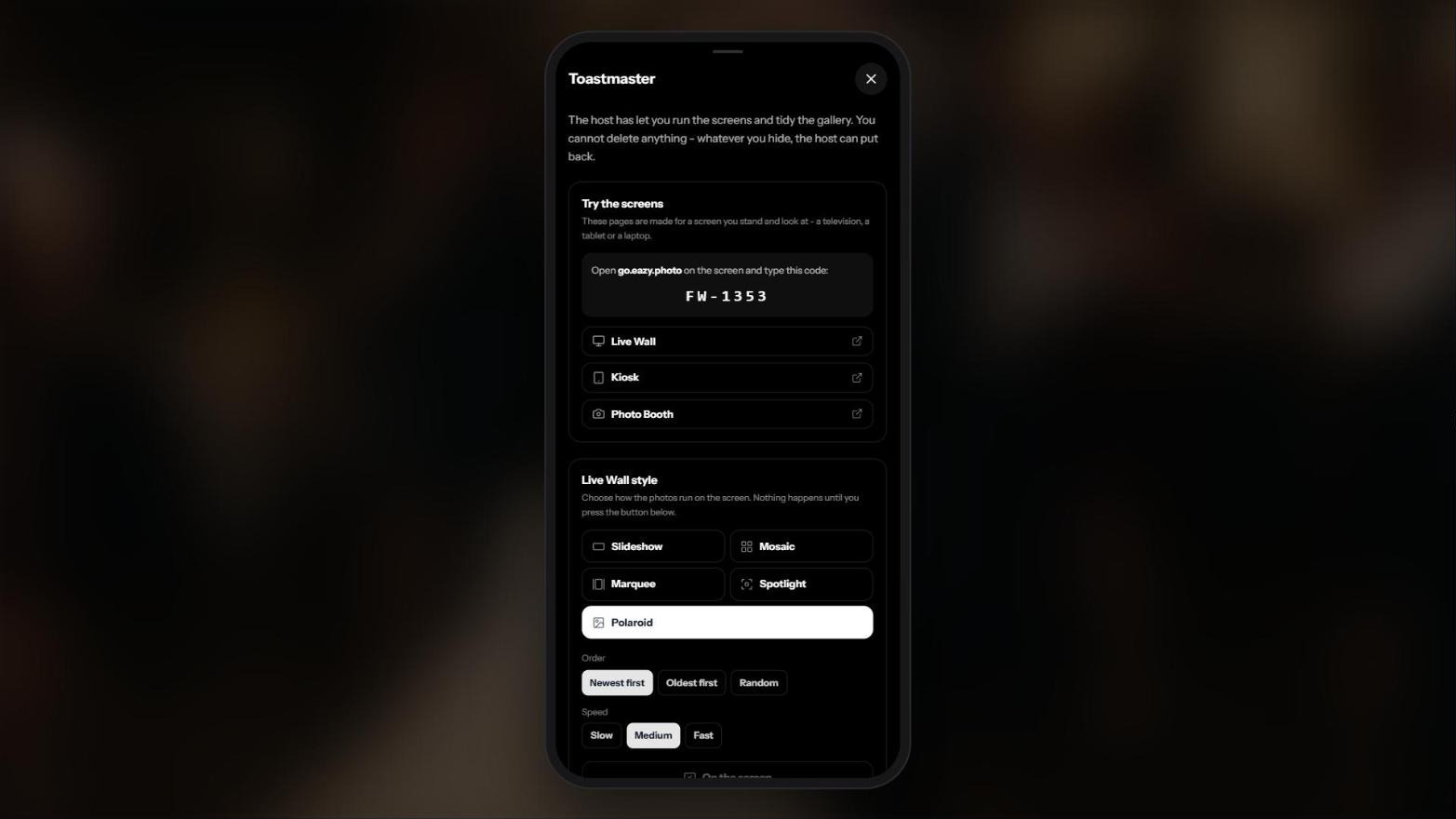
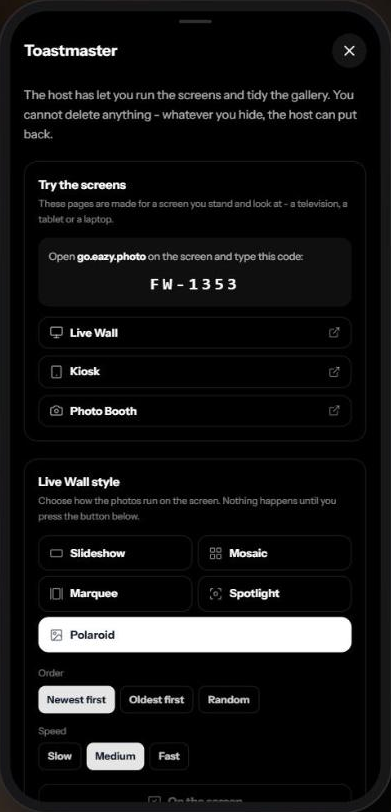
Open the menu at the top right again. Organizer now sits among the other items. It opens a drawer with everything you may do:
- Live Wall, Photo Booth, Kiosk and the leaderboard - on and off with one press
- The Live Wall's style - five to choose from, and it changes on the screen in the room immediately
- The live access code and links straight to the three screens, so you can open them on a laptop
Everything you press takes effect at once - except the Live Wall's style, which only reaches the screen when you press Put it on the screen.
4. Take a photo down
Open the gallery, tap the photo so it fills the screen, and press the crossed-out eye. You are asked once, and then the photo is off the gallery and off every screen in the room.
It is worth knowing what you are doing - and what you are not:
- You are not deleting anything. The file stays.
- The guest who took it still has it under mine. They are not told.
- The host can put it back, and can see that it was you.
You can only take other people's photos down. Your own have an ordinary delete button, like every other guest's.
5. When you are done
You do not have to do anything - the role expires with the party. To give it up sooner, Hand the role back sits at the bottom of your settings. You stay a guest and keep your own photos.
You are a guest the whole way through. You do not have the host's account, and you cannot delete the party by accident.
Who should have it
Whoever is staying put anyway. In practice:
- Wedding: the organizer, or the best man who is not dancing
- Confirmation: an adult from the other side of the family
- Company party: whoever booked the venue and is watching everything regardless
- Birthday: a sibling or a neighbour who knows half the guests
Pick somebody who is there all evening, and who knows people well enough to tell when a photo should come down.
When the party is over
You do not have to do anything. The role belongs to the guest session, and it expires with the event.
To take it back sooner, you have two ways:
- New code - everybody holding the old one loses the role that second
- Switch off - the same, and there is no code left
Both take effect immediately, mid-party included. That is the point: if you are changing the code, it is because it travelled further than you meant.
If you use eazyAI
You can ask the assistant instead. "Switch the organizer on for my party" or "make a new organizer code" - it asks you first, and says what happens to whoever is holding the old one.
Read next

Inspired by these guides?
Start capturing memories at your own event today with eazy.photo.
Get Started