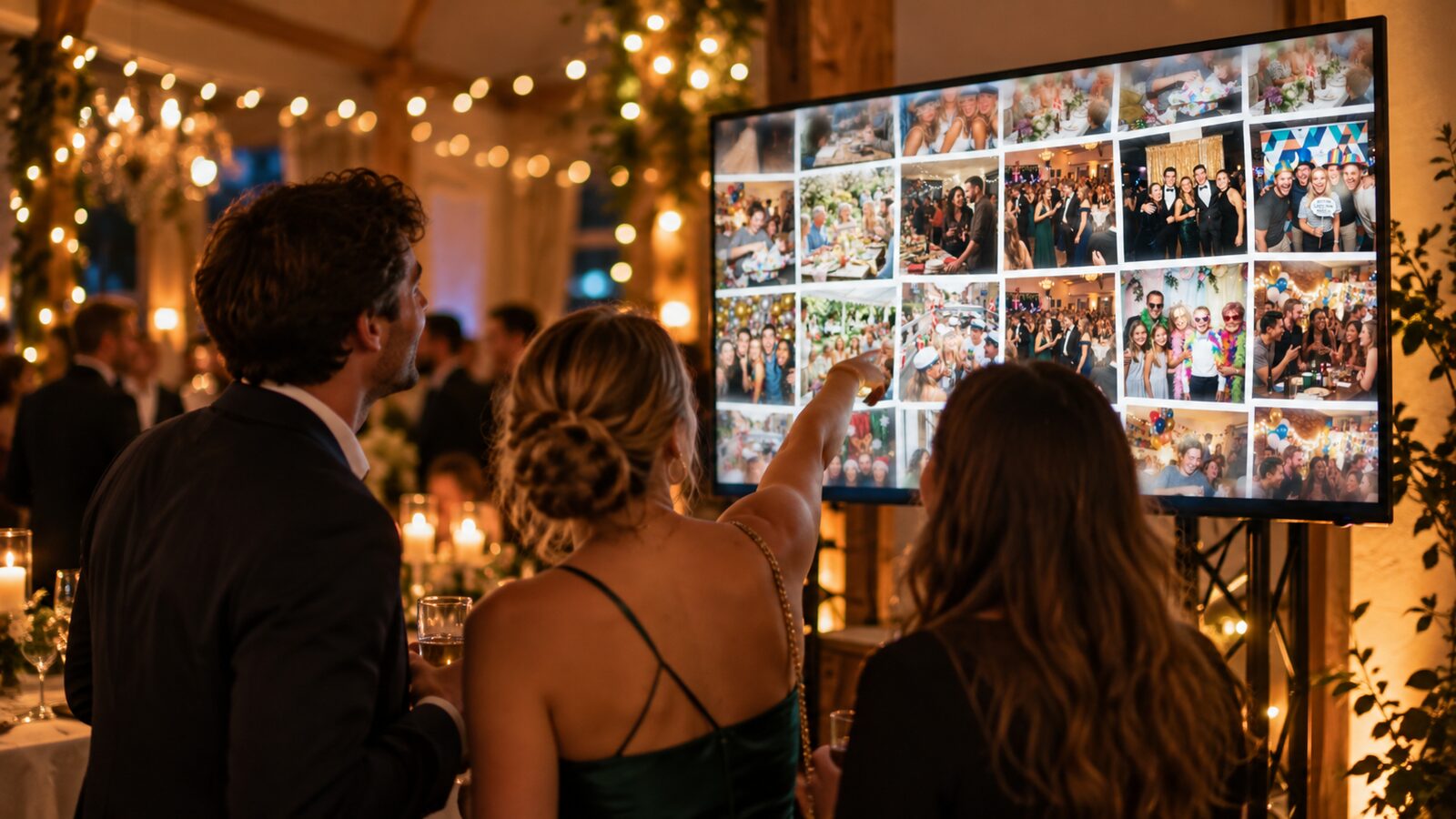
The Live Wall: getting the photos onto the screen
A TV in the room, your guests' photos on it, and nobody having to do anything to make it happen.
A photo on a phone is seen by one person. The same photo on the TV in the room is seen by fifty, and then somebody walks over and takes another one.
That is the whole point of the Live Wall. It runs by itself and keeps running all evening without anyone having to press anything.
Switch it on before the guests arrive
The Live Wall lives under Live features on your event. It is off to begin with, so it needs turning on once.
The same place holds the two other screen features:
- Kiosk is a gallery guests can browse themselves. It belongs on a tablet that stays put on a table.
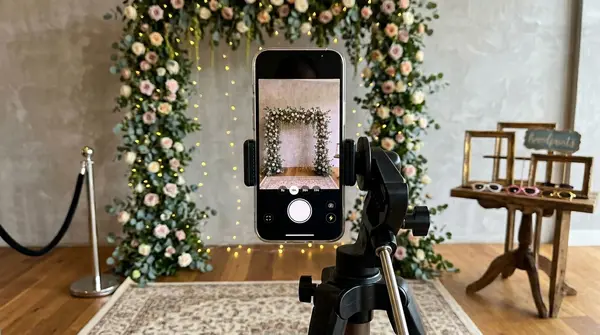
- Photo Booth is a phone or tablet that stays where it is and takes the photo itself after a countdown.
All three can run at the same time on separate devices.
Choose how the wall looks
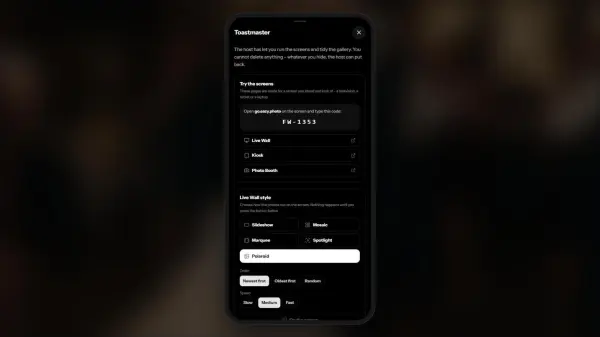
There are five display types, and they are not just decoration. They behave differently once a lot of photos arrive at once.
- Slideshow shows one photo at a time, full screen, with a slow zoom. The classic choice, and the easiest to read from across the room.
- Mosaic builds a grid that scrolls on once it fills up. Pick between two and six rows. It shows the most photos per minute.
- Marquee lets the photos drift past in an endless stream. You choose whether they run up, down, left or right.
- Spotlight puts one photo in focus at a time with a soft transition. Choose fade or zoom, and whether the photo fills the screen or is shown whole.
- Polaroid fades photos in and out like a pinboard. It is the calmest of them.
Each type lets you set the speed to slow, medium or fast, and the order to newest first, oldest first or random.
Pro tip: Random order is underrated. With newest first, the photos from the start of the evening disappear, and those are often the ones there are most of. Random keeps the whole party in rotation all night.
Open it on the TV without typing a link
This is where it usually falls apart. Nobody wants to type a long address with a remote control.
Your event has a code. Go to go.eazy.photo on the TV or tablet, enter the code, and pick the Live Wall, the kiosk or the Photo Booth from there. It is the shortest route, and it works on any device with a browser.
The code is on your dashboard under Live features, and it was in the email you got when you created the event.
The four things that actually go wrong
The screen goes to sleep. A tablet or a phone locks itself after a few minutes. Turn off auto-lock on the device and keep it plugged in. A TV with a screensaver does the same thing.
The screen is the wrong way round. The wall is built for landscape. A tablet standing in portrait on a table looks wrong with all five types.
It is somewhere nobody walks past. A screen in the corner behind the bar does not get seen. Put it where people already stand: by the bar, by the entrance or facing the tables.
The wifi does not reach. The wall pulls in new photos as they arrive. Test it at the venue, not at home.
What never reaches the wall
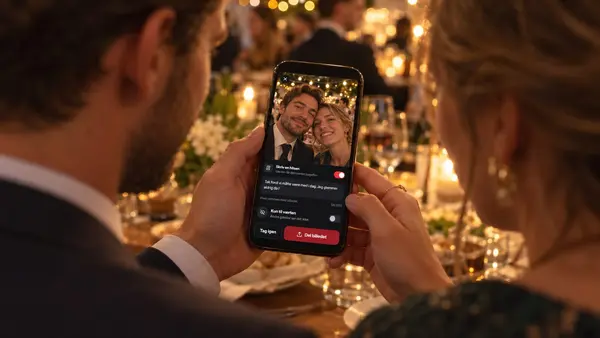
Guests can mark a photo as host only. Those photos are never shown on the Live Wall or in the kiosk. The guest decides it themselves, in the moment they share the photo.
You can also delete a photo from your dashboard, and it leaves the screen straight away.
Worth knowing before you put a screen up at a company party or a confirmation, where not every photo is for everyone.
If you are on the free package
The Live Wall works on free events, but it shows our logo. Upgrade and it disappears. The feature itself is the same.
Where to go next
If you still need QR codes and table cards, that is in the guide to QR codes and print. And if you want guests to write to you alongside their photo, read about photo greetings.
Read next
Inspired by these guides?
Start capturing memories at your own event today with eazy.photo.
Get Started